How to keep your Google rankings when leaving WordPress
By the Inovaara Studio team5 min read
On this page
To keep your Google rankings when you leave WordPress, give every old URL a 301 redirect to its new page, carry over each page's SEO title, description and content, and make sure search engines can index the new site from day one. WordPress has a few URL habits that make this easier to get wrong than on most platforms.
Why do rankings drop after leaving WordPress?
When a move goes badly, it's rarely because of the new platform. It's usually one of four things:
- URLs changed without redirects. Old links and search results point to pages that no longer exist.
- Titles and descriptions were lost. They lived in an SEO plugin and didn't come across.
- Content was trimmed. Pages were shortened or merged during the redesign, so they no longer answer the same questions.
- The new site couldn't be indexed. A "noindex" setting from staging was left on, or the sitemap was never submitted.
All four are avoidable. Even when everything is done right, Google says to expect some temporary movement while it processes a move, and that movement settles.
Which WordPress URLs need a redirect?
WordPress creates more addresses than most site owners realize. Start your list from the sitemap: since version 5.5, WordPress publishes one at /wp-sitemap.xml covering posts, pages, categories, tags and author archives. Then crawl the site and check your analytics, because sitemaps leave things out.
These are the URL types we look for on every WordPress move:
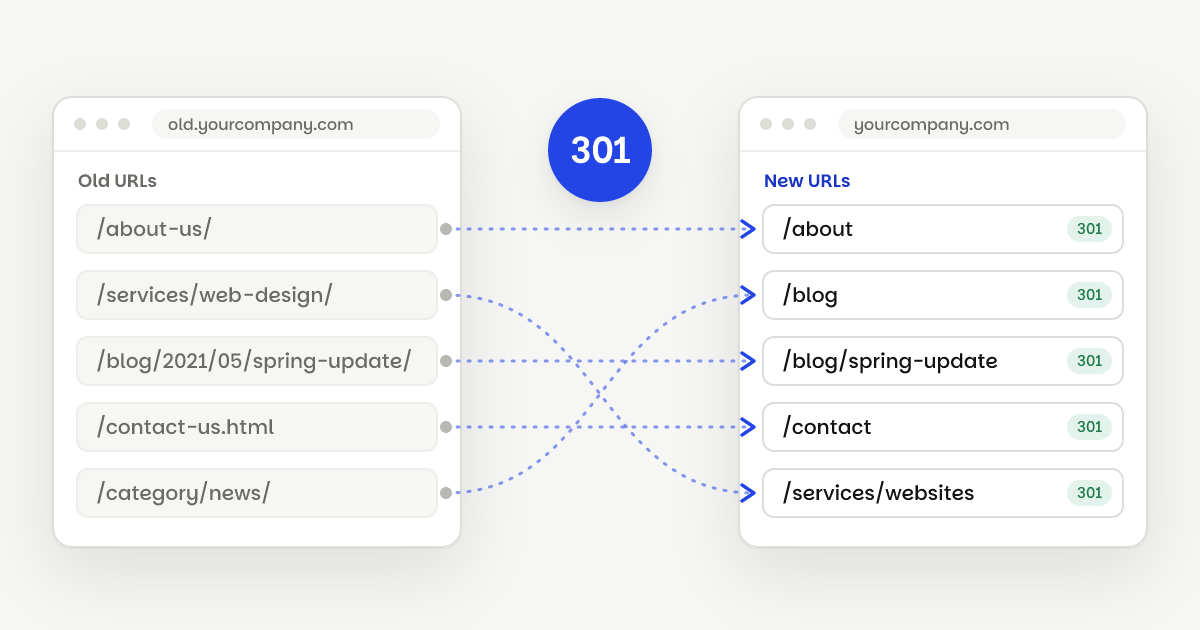
- Posts. Depending on your permalink setting, posts may live at
/post-name/, at dated addresses like/2021/05/post-name/, or at plain IDs like/?p=1042. In Webflow, CMS items are served under their Collection's path, such as/blog/post-name, so most post URLs change. - Pages. Usually the easiest. Many keep the same slug, and the ones that change get a one-to-one redirect.
- Category and tag archives. Addresses like
/category/news/and/tag/events/. Some become filtered blog pages; others are better redirected to the closest section. - Author and date archives. On small business sites these rarely deserve their own page. Redirect them to the blog.
- Attachment pages. Older WordPress sites can have a page for every uploaded image. WordPress turned these off for new sites in version 6.4, but sites that existed before keep them. Check for them in your crawl.
- Feeds. WordPress publishes RSS feeds for posts and comments. If people subscribe, point the old feed address at the new blog's feed.
For how to turn that list into a working plan, see what a redirect plan is and how to build one.
Which SEO settings should carry over?
On WordPress, your SEO data is spread across the post editor, the theme and an SEO plugin. In Webflow, most of it lives on the page or in CMS fields. Here's how the pieces map:
| On WordPress | In Webflow |
|---|---|
| Post title and body | CMS item name and rich text field |
| Post slug | CMS item slug, under the Collection's path |
| SEO plugin title and description | CMS fields, used in the Collection page's SEO settings |
| Featured image | CMS image field, also used for Open Graph |
| Categories and tags | Reference fields to their own Collections |
| Plugin or core sitemap | Webflow's auto-generated sitemap |
| Redirect plugin rules | Site settings, 301 redirects |
A few things are easy to miss:
- Write titles that match the page. Google builds its title links from several places, including the title tag, the main heading on the page and links pointing to it. If they disagree, it may pick its own. Keep your SEO title and your page heading telling the same story.
- Keep the content. A redesign is a good time to tidy up, but a page that ranks for a question should still answer that question after the move.
- Set the canonical URL. In Webflow, set the global canonical tag to your main domain, with
https://and without a trailing slash. If your default domain useswww, include it. - Carry over alt text. Image descriptions help search and accessibility, and they're easy to lose in a copy-paste move.
How do you launch without losing traffic?
Most of the risk sits in the first hour after the domain switches. We follow the same order every time.
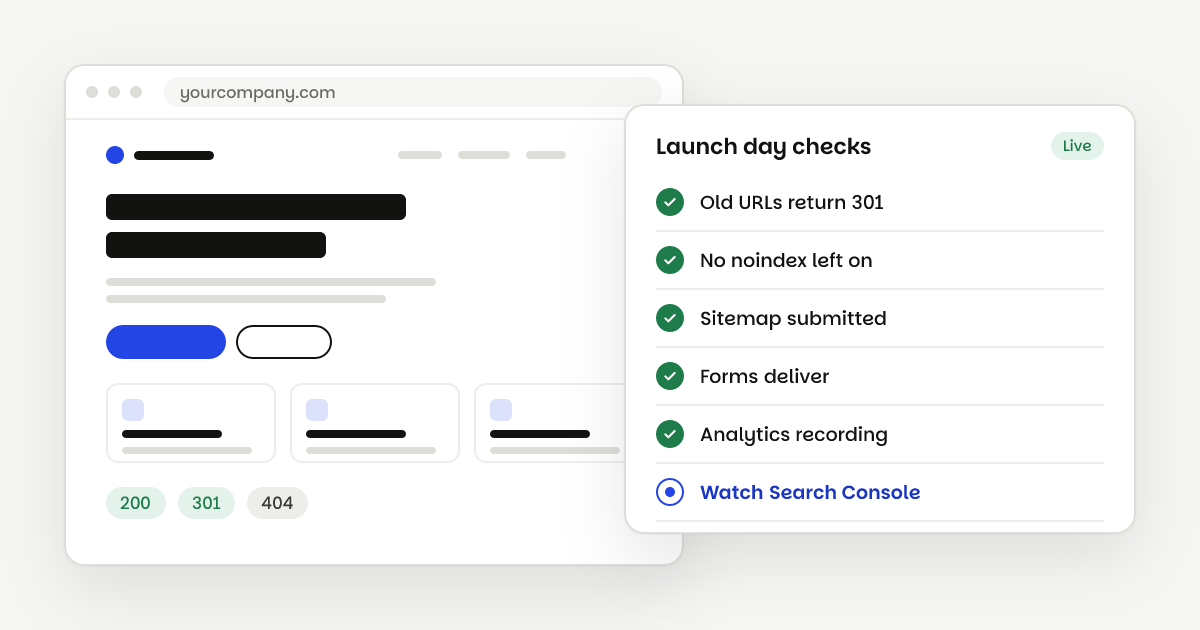
- Keep staging out of search. In Webflow, turn off staging indexing so the
webflow.ioaddress isn't indexed alongside your real domain. - Load the redirects. Import the reviewed redirect sheet as a CSV, and remove or rename any Webflow page that sits on an old path, or its redirect won't fire.
- Switch the domain and publish. Then test old URLs on the live domain: each should land on the right page in one hop.
- Check indexing. Make sure no live page carries a leftover noindex, and that the sitemap at
/sitemap.xmllists your real pages. - Tell Google. Submit the new sitemap in Search Console. Google also suggests keeping the old sitemap submitted for a while, so it finds the redirects faster.
- Watch for a few weeks. In Search Console, the new pages should gain impressions as the old ones drop out. Fix any crawl errors as they appear.
If the domain itself is changing too, Google's guide adds one step: use the Change of Address tool in Search Console for the old domain.
What does a WordPress move look like with us?
Our WordPress to Webflow migrations start with your WordPress export and a full crawl, so drafts, attachments and odd URL formats all show up. Every old address goes into the redirect sheet you review before the build. Posts move into the Webflow CMS with their SEO titles and descriptions, and we test every redirect after launch. Migrations start from $1,500, with the full scope and price in writing first.
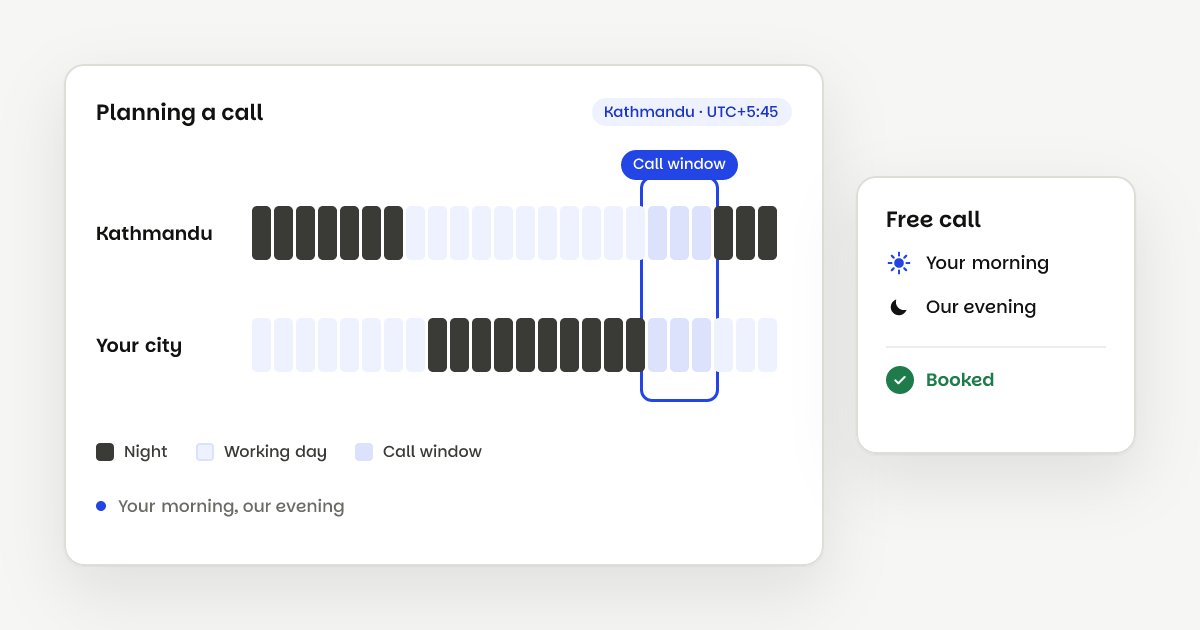
If you're weighing the move itself, our Webflow vs WordPress comparison covers the trade-offs. Or book a free call and we'll look at your site together.
Questions
No. Plugin data stays in WordPress. During the move, each post's SEO title and description is copied into its own field in the Webflow CMS, and the Collection page uses those fields for every post.
Yes. Keep a full backup, plus the XML export file from Tools, Export. It includes posts, pages, categories, tags and custom fields, which is useful if you ever need to check what was there.
Google says the switch can take a few weeks or more for a medium-sized site, and longer for large ones. Watch Search Console over that time rather than day to day.
Your pages are what rank, so they come first. If other sites link to specific images or PDFs, or they get image search traffic, add redirects for those files too.
Sources
- Google Search Central: Site moves with URL changes
- Google Search Central: Influencing your title links
- WordPress.org: Customize permalinks
- WordPress.org: Tools Export screen
- Make WordPress Core: New XML sitemaps functionality in WordPress 5.5
- Make WordPress Core: Changes to attachment pages
- Webflow Help: Structure and style Collection pages
- Webflow Help: How do I set up redirects in Webflow?
- Webflow Help: Set canonical tags to improve SEO
- Webflow Help: Disable search engine indexing